AstroをGitHubへpushする方法|よくある3つのGitエラーと解決方法
AstroプロジェクトをGitHubへpushする手順と、not a git repository、Repository not found、origin already existsの解決方法です。
Astroで作ったサイトをGitHubへ保存しようとして、not a git repository、Repository not found、remote origin already existsのどれかで止まっていないでしょうか。Gitのエラーは似たように見えても、実行場所、リポジトリの有無、登録済みのremoteなど原因はそれぞれ違います。
ゆまラボの初回pushでは、この3つのエラーを実際に順番に踏みました。この記事では、AstroプロジェクトをGitHubへ登録する基本手順と、各エラーがどの状態で発生し、どのコマンドで直したのかを実例で紹介します。GitHubへの初回pushで詰まっている場合に、原因を切り分けられる内容です。
GitHubに空のリポジトリを作成#
GitHubでyumaru-siteリポジトリを作成。
初回push時の競合を避けるため、次の項目は追加せず空の状態を選択。
- README
.gitignore- ライセンス
エラー1:not a git repository#
最初のコマンド実行場所は、AstroプロジェクトではないC:\000pj\shimen。
git add .
git commit -m "Astroブログを新規作成"
git branch -M main
実行結果はこちら。
fatal: not a git repository (or any of the parent directories): .git原因は、現在のフォルダにも親フォルダにも.gitが存在しないこと。Astroプロジェクトの直下へ移動し、Gitの初期化を実行。
cd C:\000pj\astro\yumaru-site
git init
git add .
git commit -m "Astroブログを新規作成"
git branch -M main
エラー2:Repository not found#
続いて、仮の名前として考えていたkeyword-siteをリモートURLに登録。
git remote add origin https://github.com/your-name/keyword-site.git
git push -u origin mainGitHub上に該当リポジトリがないため、Repository not foundを表示。
エラー3:remote origin already exists#
正しいyumaru-siteを追加し直そうとしたところ、今度はremote origin already existsを表示。
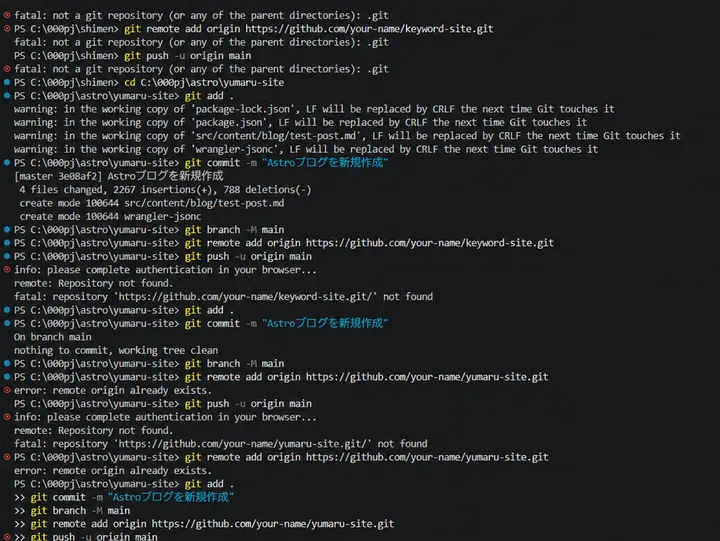
originはすでに登録済みなので、既存URLを変更する。
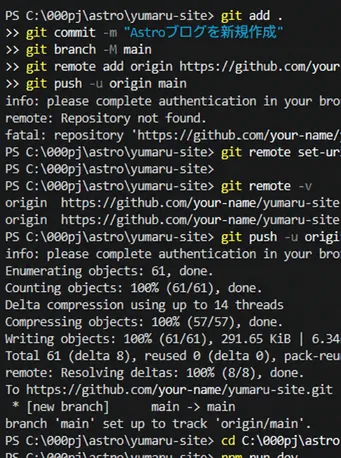
git remote set-url origin https://github.com/your-name/yumaru-site.git
git remote -vfetchとpushの両方がyumaru-site.gitを指していることを確認し、再度pushを実行。
git push -u origin mainブラウザでGitHub認証を完了すると、61個のオブジェクトを転送。main -> mainとbranch 'main' set up to track 'origin/main'が表示され、初回pushに成功。
nothing to commitの意味#
作業途中には、次のメッセージも表示。
On branch main
nothing to commit, working tree clean意味は「すでにコミット済みで、新しい変更なし」。失敗ではないため、git addやgit commitの繰り返しは不要。
今回役立った確認コマンドは次の2つ。
git status
git remote -v
変更状態と接続先を確認してからpushすることで、原因の切り分けが簡単になる。
関連記事
WindowsのAstroプロジェクトでWrangler追加時にnpm EPERMが出たときの確認方法
WindowsのAstroプロジェクトでWrangler追加時に出たnpm warn cleanupとEPERM。実際のログを見ながら、どこまで対応したかを残します。
Astro Content Collectionsのschemaエラーを直す―category・subcategoryの設計を見直す
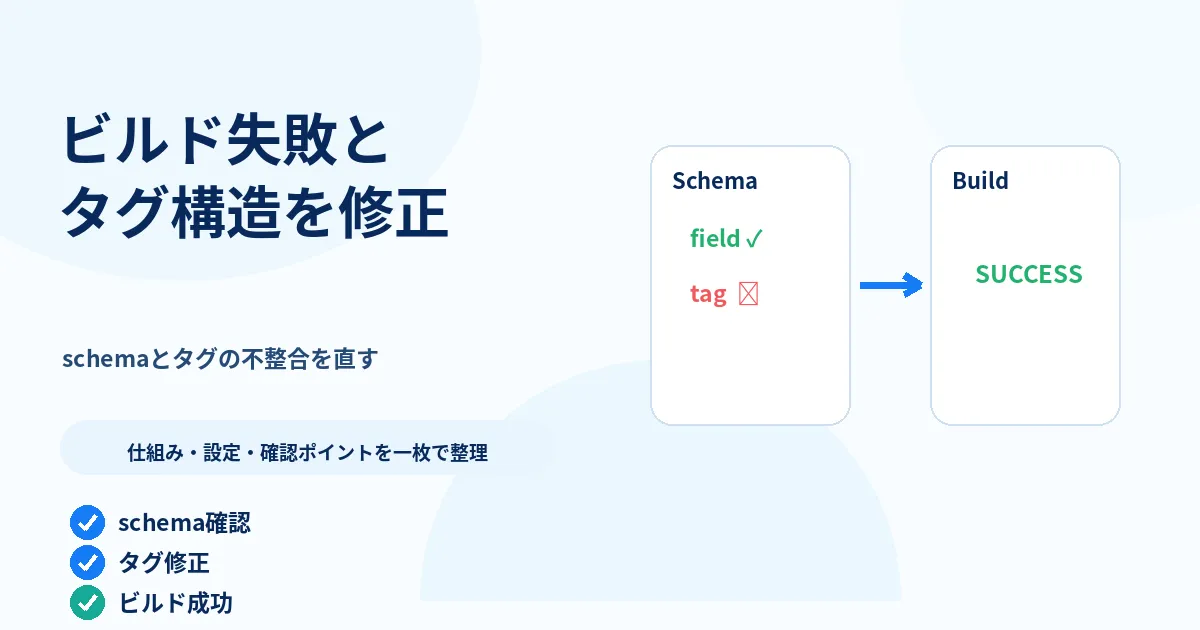
AstroのContent Collection schemaに合わないFrontmatterでCloudflare Workersのビルドが失敗。categoryとsubcategoryの修正後に見つかった分類ミス、タグ重複、トップページの余白まで続けて修正した流れを記録します。
ブログに目次と前後記事リンクを追加する方法|サイトデザインも改善
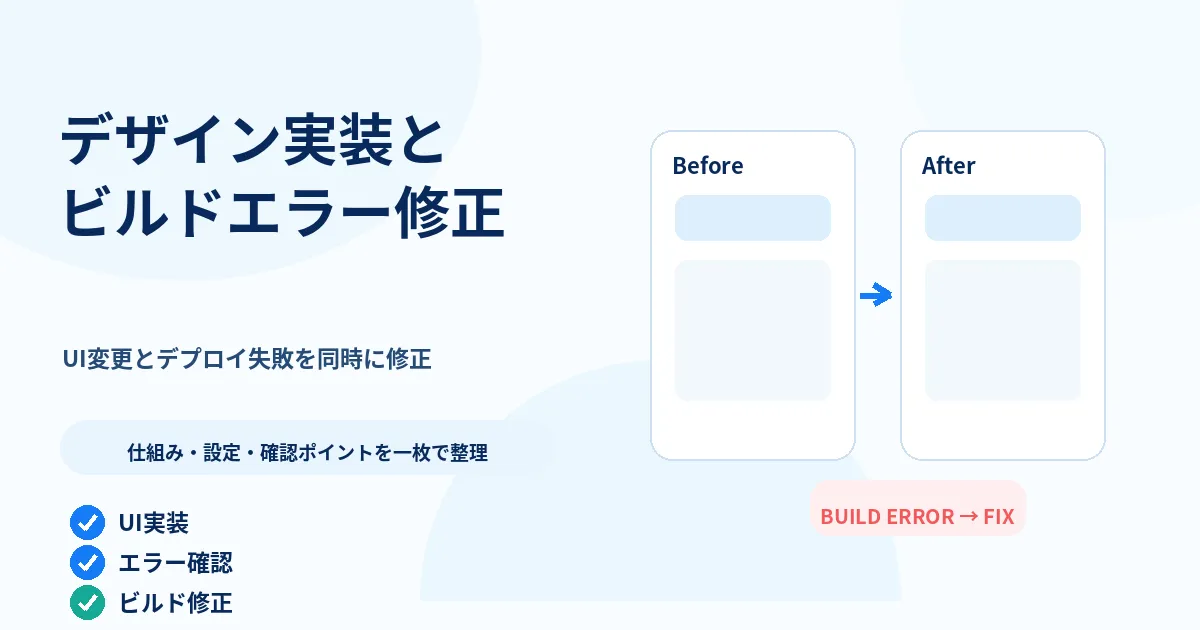
第7回で決めたデザイン方針を実際のAstroサイトへ反映。トップ、記事一覧、About、目次、前後記事リンクを追加し、GitHubへのpush後に発生したCloudflareのデプロイエラーも修正します。